Generating Images in .NET with `IImageGenerator`

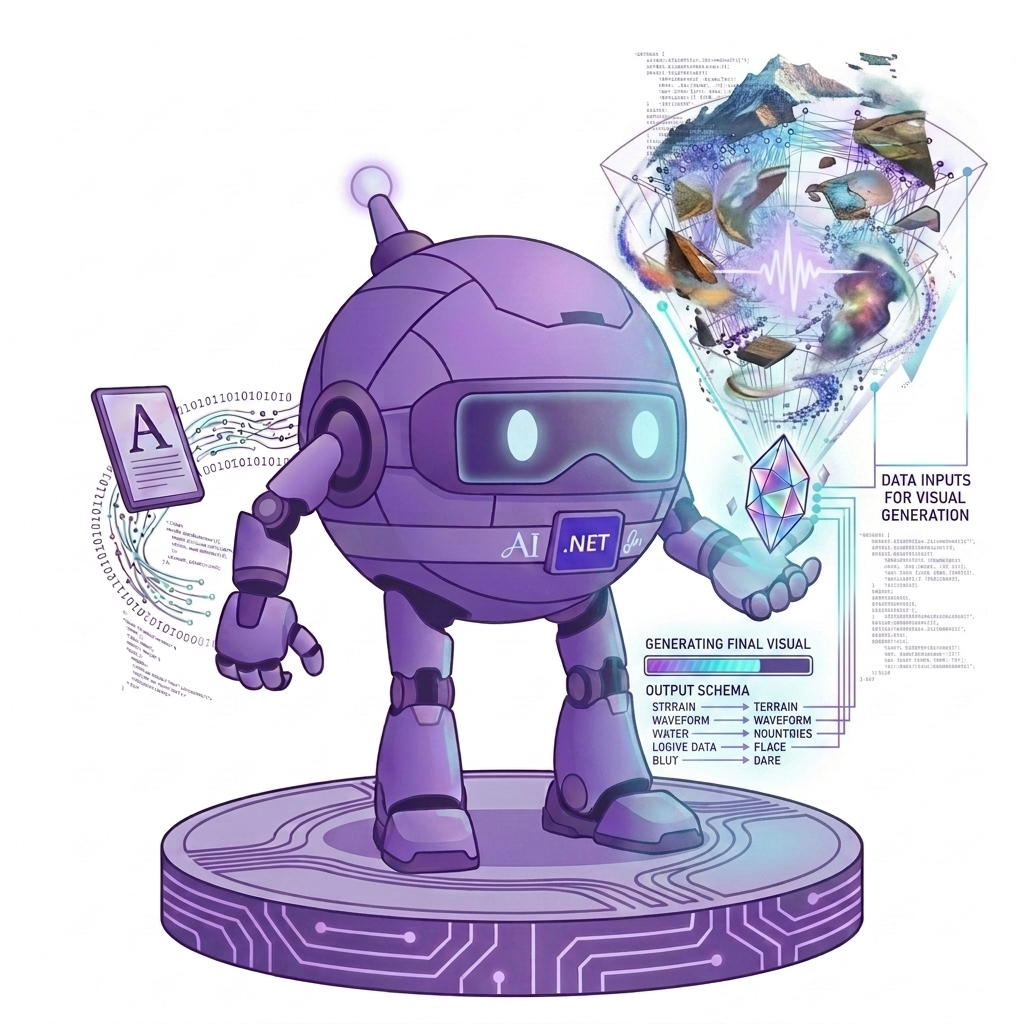
Did you know Microsoft.Extensions.AI can generate images too? IImageGenerator makes it easy!
This is Part 3 of our Microsoft.Extensions.AI series. In Part 1 we created an AI Chat Bot with an LLM using IChatClient, and in Part 2 we built semantic search using IEmbeddingGenerator. This week, we're generating images!
You're welcome to skip the definitions and jump directly to the code below.
What is IImageGenerator?
IImageGenerator is the newest abstraction in MEAI: a text prompt goes in, an image comes out.
And just like IChatClient and IEmbeddingGenerator, it's one interface that AI providers plug into, so we can swap image models without rewriting our apps.
Opt-into this Experimental Feature
The MEAI team released IImageGenerator using the [Experimental] attribute. This lets the community test its features and provide feedback while giving the .NET team the flexibility to modify the API.
In practice, this means our code won't compile until we opt in!
- In the
csprojfile of your app, suppressMEAI001:
<!-- Opt into the experimental Microsoft.Extensions.AI image generation APIs -->
<PropertyGroup>
    <NoWarn>$(NoWarn);MEAI001</NoWarn>
</PropertyGroup>
Important:
[Experimental]means the API surface may still change in a future release, so double-check the release notes when updating the NuGet Package.
Code
Now that we're opted in, let's write some code!
You can find the completed code sample here.
Prerequisites
If you'd like to follow along, here are the steps.
Image models are too big to run locally (they are hungry beasts!), so this week we'll use OpenAI instead of Ollama.
Now we can finally write some code!
Console App
First, let's create a File->New Console app:
- Create a File -> New Console App in Visual Studio
- Add the
Microsoft.Extensions.AIandMicrosoft.Extensions.AI.OpenAINuGet Packages to the app.
If you're unfamiliar with adding NuGet Packages, you can find more information here.
using Microsoft.Extensions.AI;
using OpenAI;
using Size = System.Drawing.Size;

// GetImageClient().AsIImageGenerator() returns IImageGenerator, the abstraction provided by Microsoft.Extensions.AI
IImageGenerator generator = new OpenAIClient(Environment.GetEnvironmentVariable("OPENAI_API_KEY"))
                                .GetImageClient("gpt-image-1.5")
                                .AsIImageGenerator();

ImageGenerationOptions options = new()
{
    MediaType = "image/png",
    ImageSize = new Size(1024, 1024)
};

ImageGenerationResponse response = await generator.GenerateImagesAsync(
    "A watercolor painting of a robot writing C# code on a laptop at the beach",
    options);

// The generated image is returned as DataContent (the raw png bytes)
DataContent? image = response.Contents.OfType<DataContent>().FirstOrDefault();

if (image is not null)
{
    await File.WriteAllBytesAsync("robot.png", image.Data.ToArray());
    Console.WriteLine("Saved robot.png");
}
Now let's click Run and see what got generated:
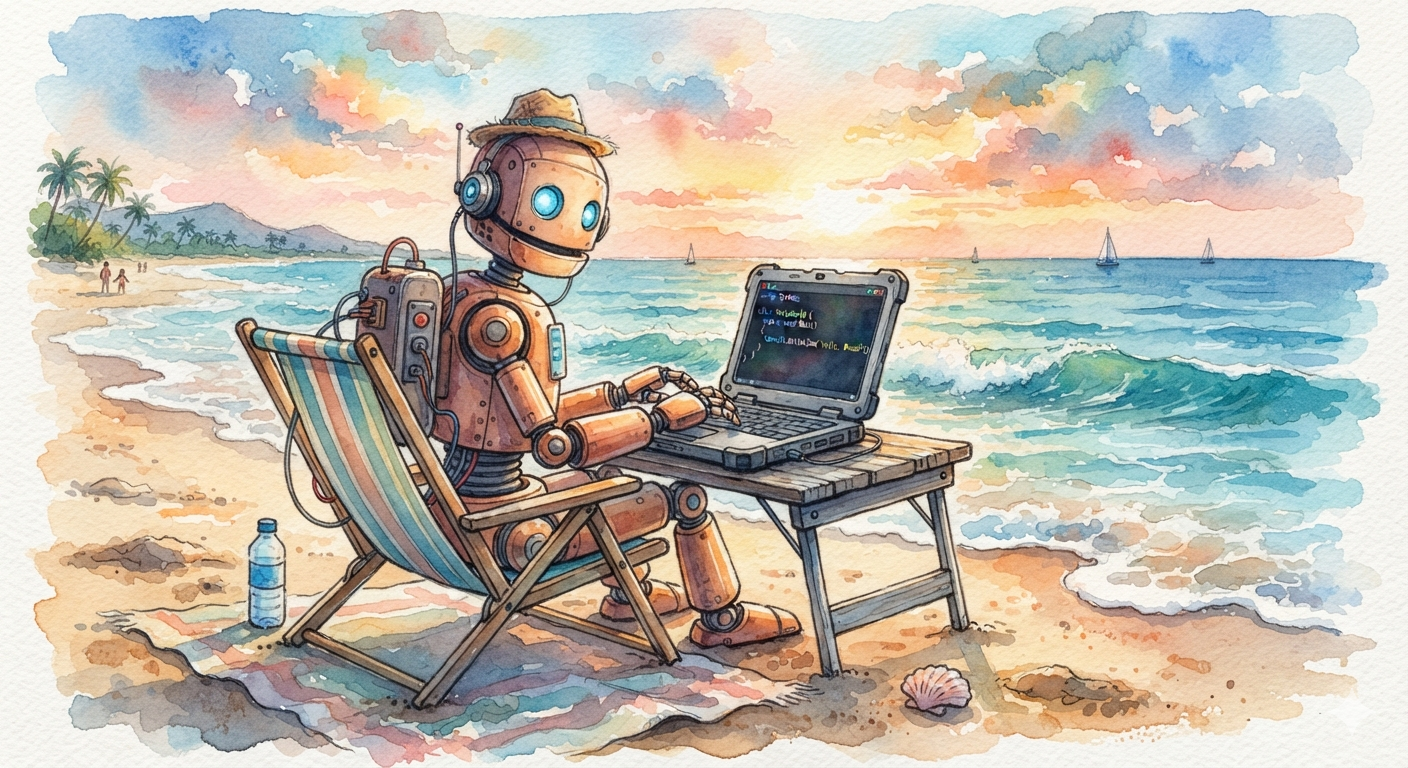
It works! One prompt, one method call, one C#-coding robot 🎉
Editing Images
Here's the best part: EditImageAsync takes an existing image plus an instruction, and returns a modified image. No masks, no layers, no Photoshop — just a sentence!
Let's give our robot a party hat:
DataContent original = new(await File.ReadAllBytesAsync("robot.png"), "image/png");

ImageGenerationResponse edited = await generator.EditImageAsync(
    original,
    "Add a tiny birthday party hat on the robot's head",
    options);

DataContent? result = edited.Contents.OfType<DataContent>().FirstOrDefault();

if (result is not null)
{
    await File.WriteAllBytesAsync("robot-party.png", result.Data.ToArray());
}
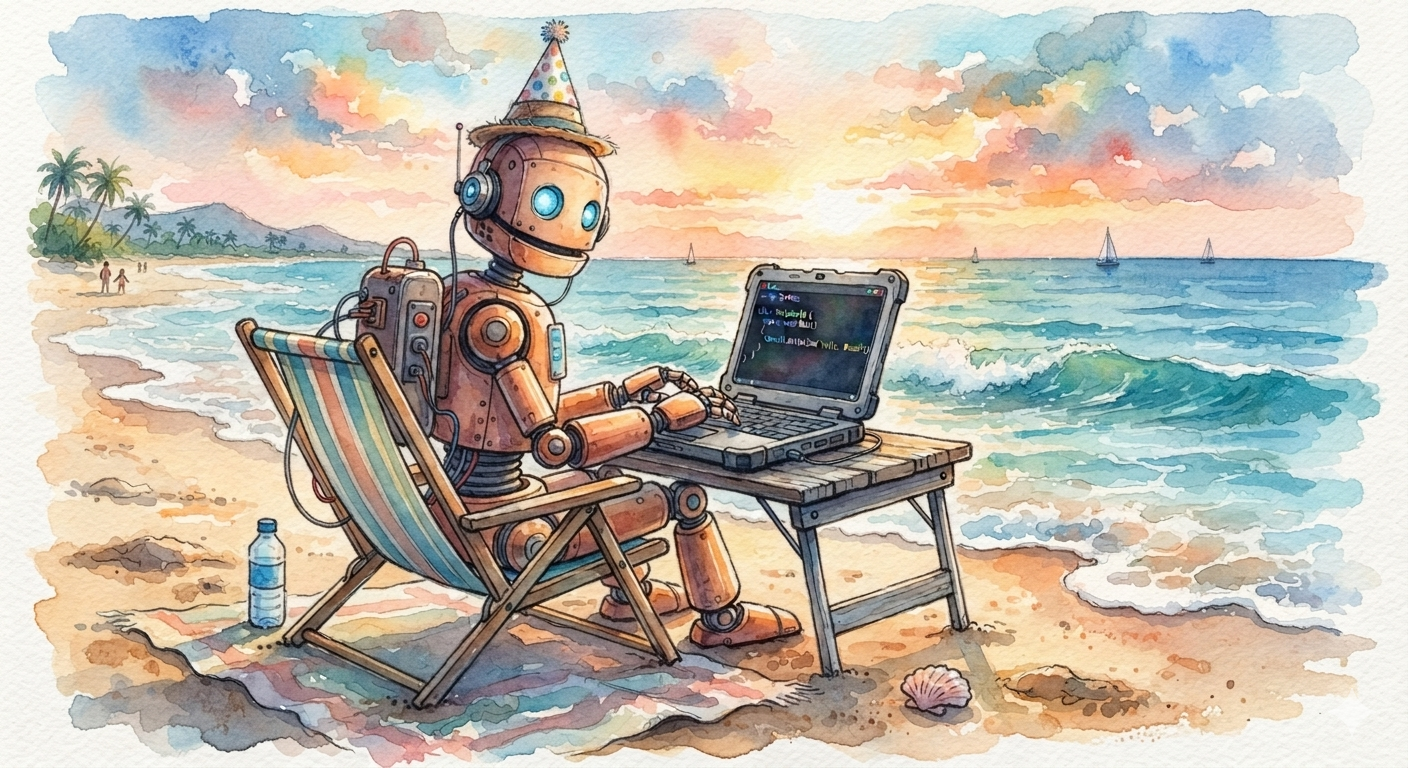
So cool!!! Think about the features this one method unlocks: user avatars with applied styles; product photos with seasonal decorations; a "match our brand colors" button; the possibilities are endless!
Conclusion
As .NET developers, we can now generate AND edit images in just a few lines of code, thanks to IImageGenerator.
And because it's part of Microsoft.Extensions.AI, everything we've already learned still applies: we can register it with Dependency Injection using AddImageGenerator(), and add middleware like logging and telemetry — exactly like we do with IChatClient.
You can find the completed code sample here: https://github.com/Dometrain/from-zero-to-hero-microsoft-extensions-ai
Next week, we'll answer the big question: how do we know if our AI's answers are any good? Enter Microsoft.Extensions.AI.Evaluation. Make sure to subscribe to this blog so you don't miss it! 👇
To learn even more about Microsoft Extensions AI, check out my course on Dometrain:
 Brandon Minnick