Connecting to Any OpenAI-Compatible Endpoint with `Microsoft.Extensions.AI.OpenAI`

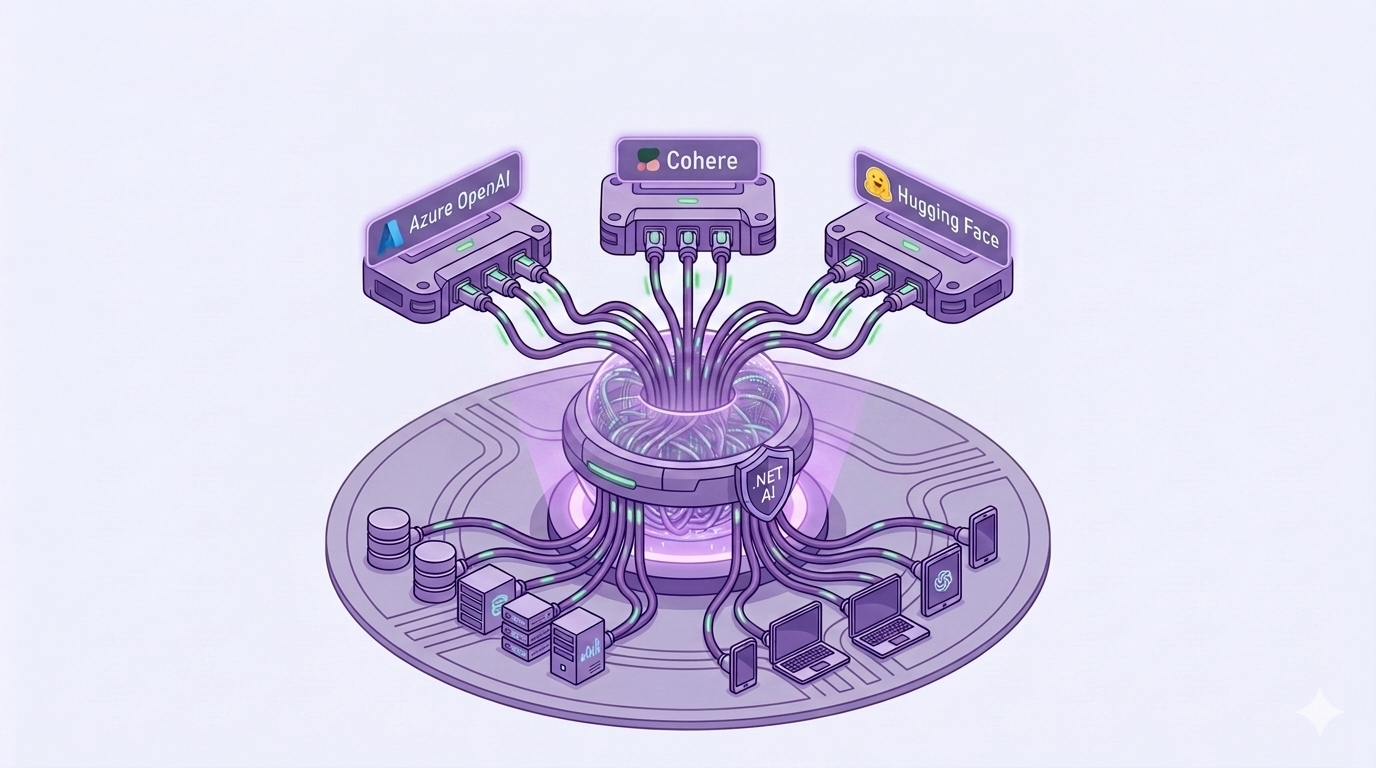
Did you know the Microsoft.Extensions.AI.OpenAI NuGet Package works with far more than just OpenAI? One adapter package unlocks every OpenAI-compatible endpoint on the internet — and even the ones on your laptop!
This is Part 6 of our Microsoft.Extensions.AI series. We've already used this package to swap providers in Part 1 and generate images in Part 3. This week, we'll see just how far one package can stretch!
You're welcome to skip the definitions and jump directly to the code below.
What is Microsoft.Extensions.AI.OpenAI?
Microsoft.Extensions.AI.OpenAI is an adapter package: it converts the clients from the official OpenAI .NET SDK into MEAI abstractions using one-liner extension methods like AsIChatClient(), AsIEmbeddingGenerator() and AsIImageGenerator().
Why does that unlock everything?
Here's the fun part: the OpenAI API has become the de facto standard, so MANY services speak it — Azure OpenAI, Ollama, LM Studio, vLLM, OpenRouter and more.
Point the OpenAI SDK at any of those endpoints, call AsIChatClient(), and our app code doesn't change at all.
Code
Now that we have those pesky definitions out of the way, let's write some code!
You can find the completed code sample here.
Prerequisites
If you'd like to follow along, here are the steps.
We'll prove the point using Ollama, because it's completely free.
- Download + install Ollama and pull a model:
ollama pull qwen3.5 - Create a File -> New Console App in Visual Studio
- Add the following NuGet packages to the app:
If you're unfamiliar with adding NuGet Packages, you can find more information here.
Now we can finally write some code!
Console App
Ollama exposes an OpenAI-compatible endpoint at /v1. Let's point the official OpenAI SDK at it:
using System.ClientModel;
using Microsoft.Extensions.AI;
using OpenAI;

// Point the OpenAI SDK at Ollama's OpenAI-compatible endpoint
var openAIClientOptions = new OpenAIClientOptions
{
    Endpoint = new Uri("http://localhost:11434/v1")
};

// Ollama ignores the API Key, but the OpenAI SDK requires one, so any text works here
IChatClient client = new OpenAIClient(new ApiKeyCredential("ollama"), openAIClientOptions)
                        .GetChatClient("qwen3.5")
                        .AsIChatClient();

ChatResponse response = await client.GetResponseAsync("In one sentence, why do .NET developers love abstractions?");

Console.WriteLine(response.Text);
Now let's click Run and see what gets printed to the console:
Because abstractions let us swap implementations without rewriting our apps —
exactly what you're doing right now.
It works! We just talked to a local model running on our own machine — through the official OpenAI SDK! 🎉
Azure OpenAI
The same trick works for Azure OpenAI using its dedicated client. Note that we pass our Azure deployment name to GetChatClient:
using System.ClientModel;
using Azure.AI.OpenAI;
using Microsoft.Extensions.AI;

// Same IChatClient, now backed by Azure OpenAI
IChatClient client = new AzureOpenAIClient(
                            new Uri("https://your-resource.openai.azure.com"),
                            new ApiKeyCredential(Environment.GetEnvironmentVariable("AZURE_OPENAI_KEY")!))
                        .GetChatClient("gpt-5.1")
                        .AsIChatClient();
LM Studio, vLLM, OpenRouter and friends all follow the first pattern: swap the Endpoint, swap the model name, done. ONE package, every OpenAI-compatible endpoint.
Conclusion
As .NET developers, Microsoft.Extensions.AI.OpenAI is the single most useful adapter in our AI toolbox — it covers the biggest cloud providers AND our local machines.
And we've only scratched the surface! The same package ships AsIEmbeddingGenerator(), AsIImageGenerator(), AsISpeechToTextClient() and AsITextToSpeechClient(), so this trick extends to embeddings, images and audio too.
You can find the completed code sample here: https://github.com/Dometrain/from-zero-to-hero-microsoft-extensions-ai
Next week, we'll run an LLM that never touches the internet: on-device AI in .NET MAUI. Make sure to subscribe to this blog so you don't miss it! 👇
To learn even more about Microsoft Extensions AI, check out my course on Dometrain:
 Brandon Minnick